Table of Contents

HDHomeRun for Mac

See all app topics

Installing the HDHomeRun app for Mac

Install the app

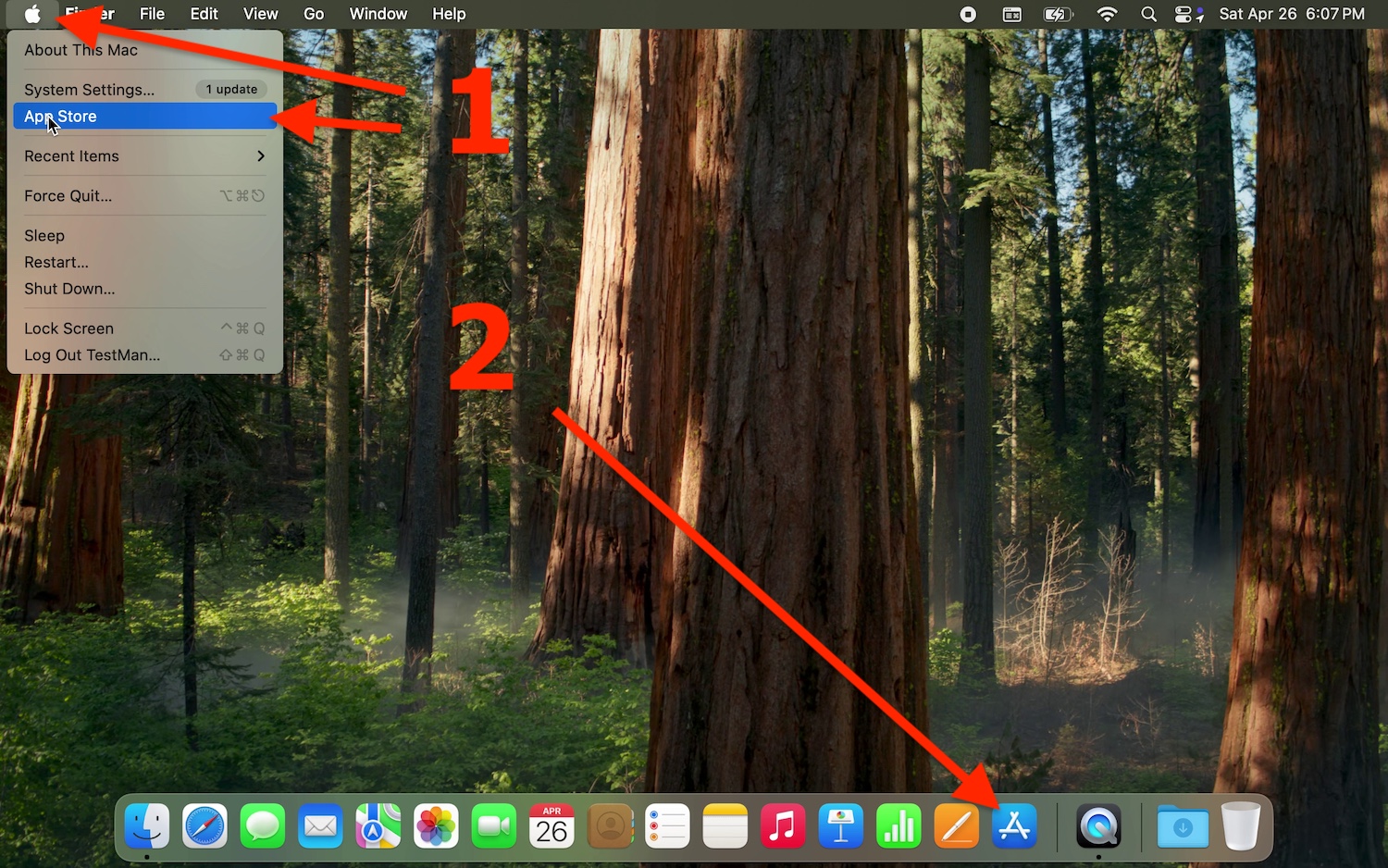
Download the app from the App Store

  1. If you are viewing this web page on your Mac then you can click the download link to open the App Store store directly: Download link
    Otherwise, open the App Store app and search for “HDHomeRun”.
  2. Click the installation button
  3. Launch the app from the Applications folder, Launchpad, or Dock.
  4. The first time you open the app you will need to grant the app permissions to talk to the HDHomeRun hardware on your local network, then press “Retry” if needed.

Scan for channels

The HDHomeRun will attempt to automatically scan for channels the first time it is connected to power, and will occasionally do a background scan every few days, but you may still need to run an initial channel scan.

  • Scan for channels using the HDHomeRun app:
    1. Select the gear icon in the top-right corner of the “Live / Guide / Recorded / Discover / Tasks” screen
    2. Select “Channels”
    3. Select “Scan Channels”
    4. Wait for the scan to complete
  • Scan for channels using the web interface:
    1. In a web browser that is on the same local network as the HDHomeRun (your PC, phone, tablet, etc), go to this address: http://hdhomerun.local/lineup.html
    2. Click on “Detect Channels”
    3. You can also hide or “Favorite” channels from this page. Click the gray star next to a channel number once to make it a “Favorite”, then click it again to “Blacklist” the channel from the HDHomeRun app. Click again if you wish to return a channel to the default gray star (no setting).

Basic controls

See all app controls

  • While no controls are visible on screen (Press back/exit/escape to clear visible controls from the screen):
  • UP / Down - Opens the right-hand Slice Guide for channel changes (or the grid guide if you disable the Slice Guide in settings)
    • While in recording playback, UP / Down will seek in 10 minute steps
  • LEFT / RIGHT - Seeks when viewing a recording or when you have paused live TV and have a buffer to rewind and fast forward through
  • SELECT - Brings up the action bar with “Play/Pause” selected, so that you can press “Select” twice to quickly play or pause. From here you can navigate to the other action bar buttons.
  • BACK - Exits to the Recorded/Discover/Tasks/Settings screens

Troubleshooting

See all troubleshooting topics

No HDHomeRun tuners found

Make sure you have granted the HDHomeRun app permissions to access your local network. Go to the Settings app → scroll down to “Apps” → “HDHomeRun” → make sure “Local Network” is turned on. If the HDHomeRun app is not listed there, then try deleting/uninstalling the HDHomeRun app and then reinstalling it from the App Store. Be sure to select the option to allow access to the local network, when opening the HDHomeRun app after installation.